
A customer chooses a product while you are away from your computer. With the Mobile POS in the Jumpseller app, you can select products and variants, add the customer and create an order from your phone. Here are three practical ways to use that workflow.
At a market or pop-up shop
Use your existing catalogue to find the product and select the correct variant. Filter by category or status when browsing a larger catalogue. Add the items to the cart and choose Without Shipping when the customer will take them away.
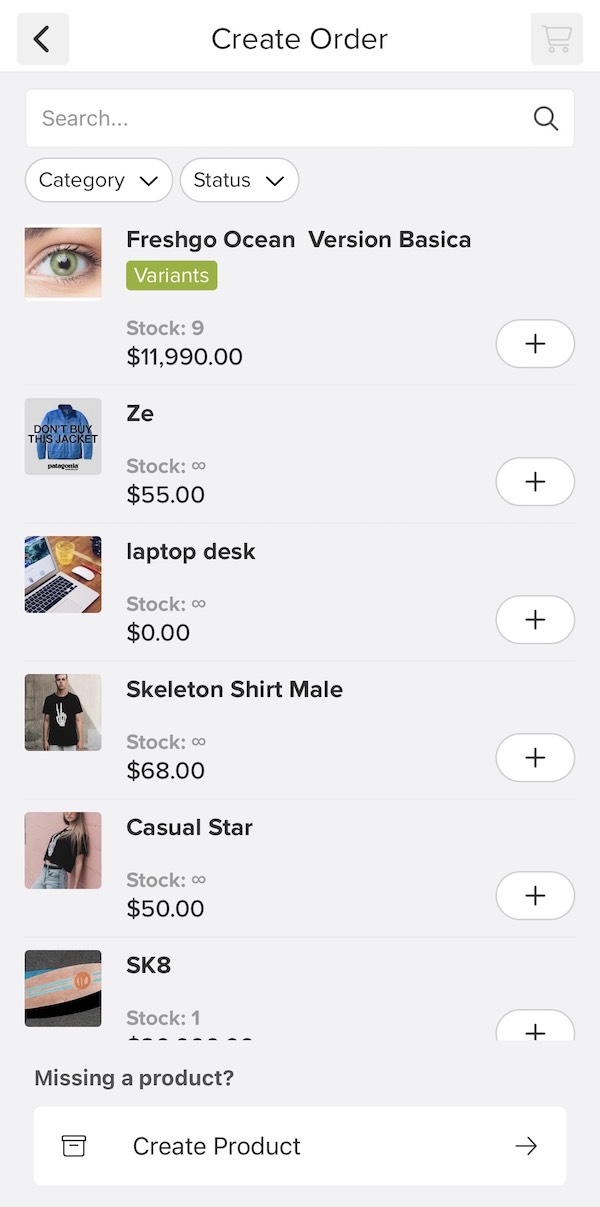
If you have already received payment, select Complete as paid. Confirm the payment before using this option: recording an order as paid is a separate step from collecting the money.
In your physical store
When you are helping a customer on the shop floor, select an existing customer or add a new one before reviewing the order. Check the items, variants, quantities and order total with the customer, then confirm the order.
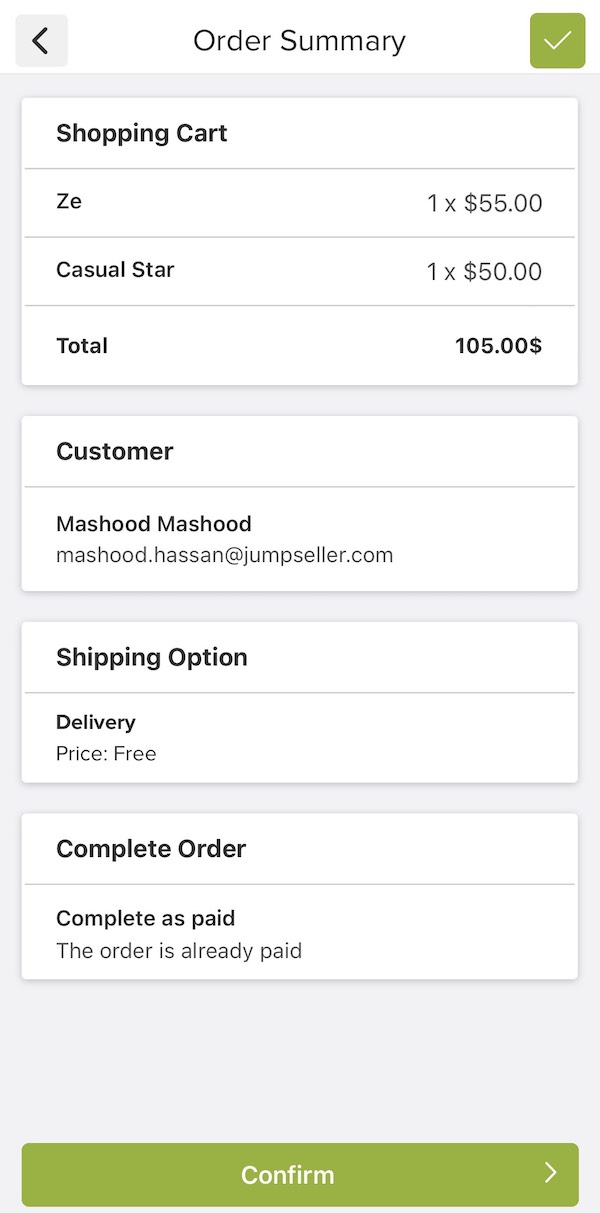
For a customer taking the purchase home, choose Without Shipping. If they need the products delivered instead, use the delivery workflow below.
During a customer visit
Create the order while discussing the products with the customer. Choose Delivery, select or create the customer contact, and review the shipping information and price before confirming.
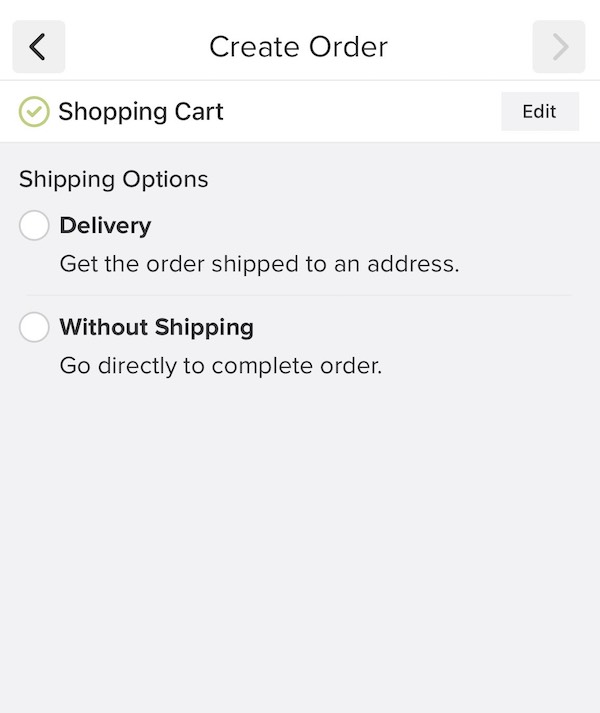
If payment still needs to be made, choose Send order link. The order remains payment pending and the customer receives a link with the instructions to complete the transaction.
Before your first sale
- Confirm that your store uses checkout V2, as required by the mobile app.
- Review your product catalogue and variants before the event or visit.
- Create a test order and check the full journey: customer, delivery choice, payment status and confirmation.
- Agree with your team on when an order should be marked paid.
For the step-by-step screens, see Using the Mobile POS. If you prefer to work in a browser, see Manual Orders.
The examples above use the documented order-creation workflow. Check any card reader, receipt printer or other payment hardware separately before relying on it for an event.