How to Add and Configure a Product in Jumpseller
The complete guide to adding and configuring a product in Jumpseller — name, images, categories, pricing, stock, options, custom fields, digital go...
Keep an accurate count of each product and variant so you can identify differences before making another adjustment. Use the appropriate stock location when your store manages more than one location.
A count of 12 T-shirts is not enough if you sell several sizes: record each variant separately. For stock held in several places, review multiple stock locations before adjusting a particular warehouse.
| Need | Method | Check before applying |
|---|---|---|
| Correct a few quantities after a count | Inventory list | Selected variant and location. |
| Increase or decrease several variants by the same quantity | Inventory bulk actions | Selected products and operation. |
| Update many quantities by location | Inventory CSV | A recent export, location columns and UTF-8 encoding. |
| Coordinate stock with an external system | API or integration | Which system owns stock and how duplicate adjustments are avoided. |
The inventory CSV updates stock quantities. To create products or change other catalogue data, use product import.
If a variant has 10 units and an order for 2 units moves to Pending, its stock becomes 8. When that same order moves to Paid, stock stays at 8: do not manually deduct the units a second time. The existing stock-state rules are:
Check the variant, location, stock history and order states first. Then review manual adjustments, imports and updates from external integrations. Finding the cause first helps avoid another duplicate correction.
Open Products > Inventory to review product or variant, SKU, stock and low-stock threshold. Import, Export and Save appear at the top; Save stays disabled while there are no changes.
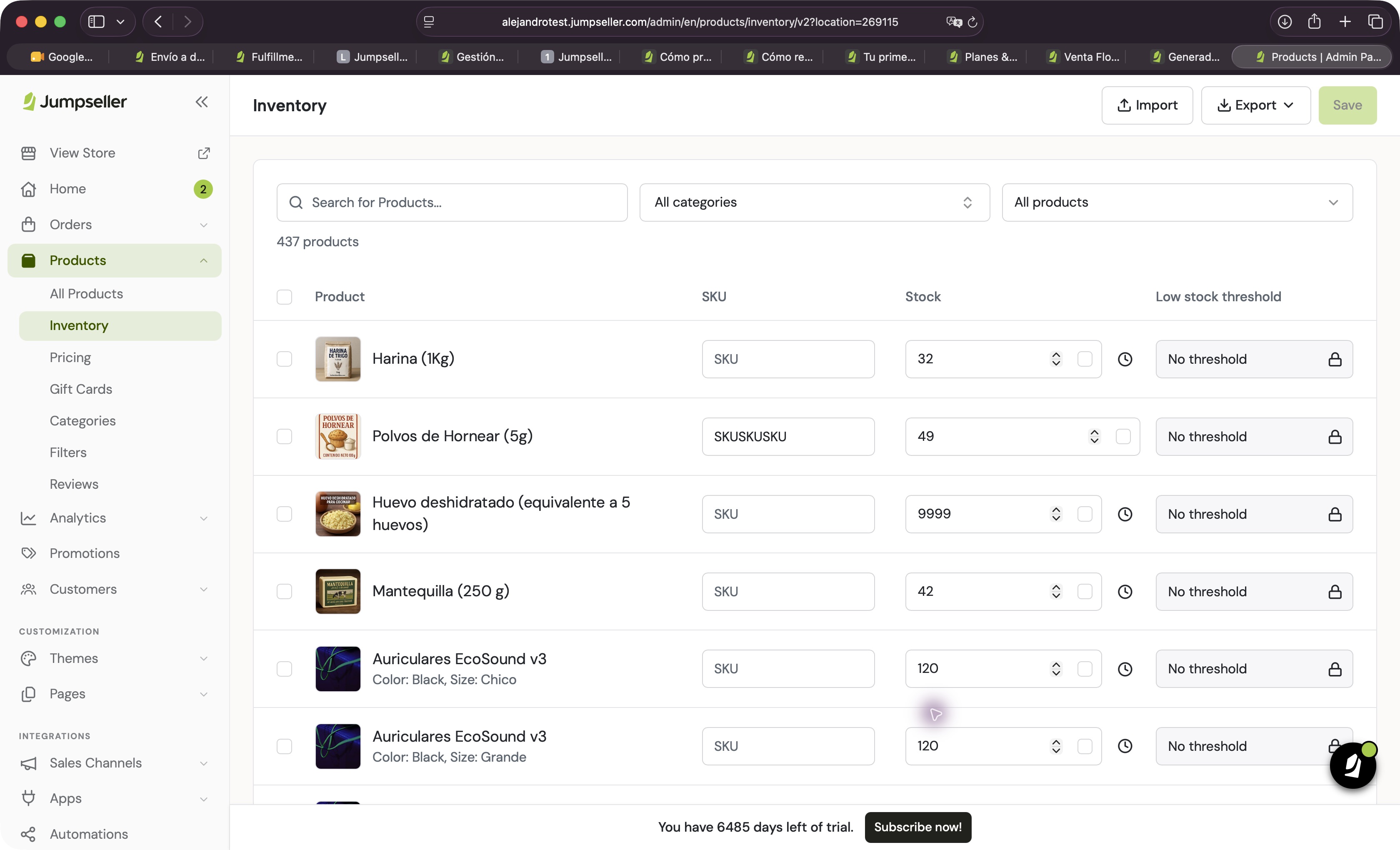
The screenshot is from a real test store. This review inspected the interface without changing quantities, importing files or exercising order-state stock transitions.
Export a recent file from Inventory, identify the relevant variant and location columns, and update the stock quantities. Save the file as UTF-8 CSV before importing. This stock-specific file does not create new products or change product names or SKUs; use the product-import workflow for catalogue changes.
Keep a copy of the export, apply the update once, and inspect a sample of variants afterwards. See the related product, location and CSV guides below for the appropriate workflow.
Start your free 7-day trial. No credit card required.